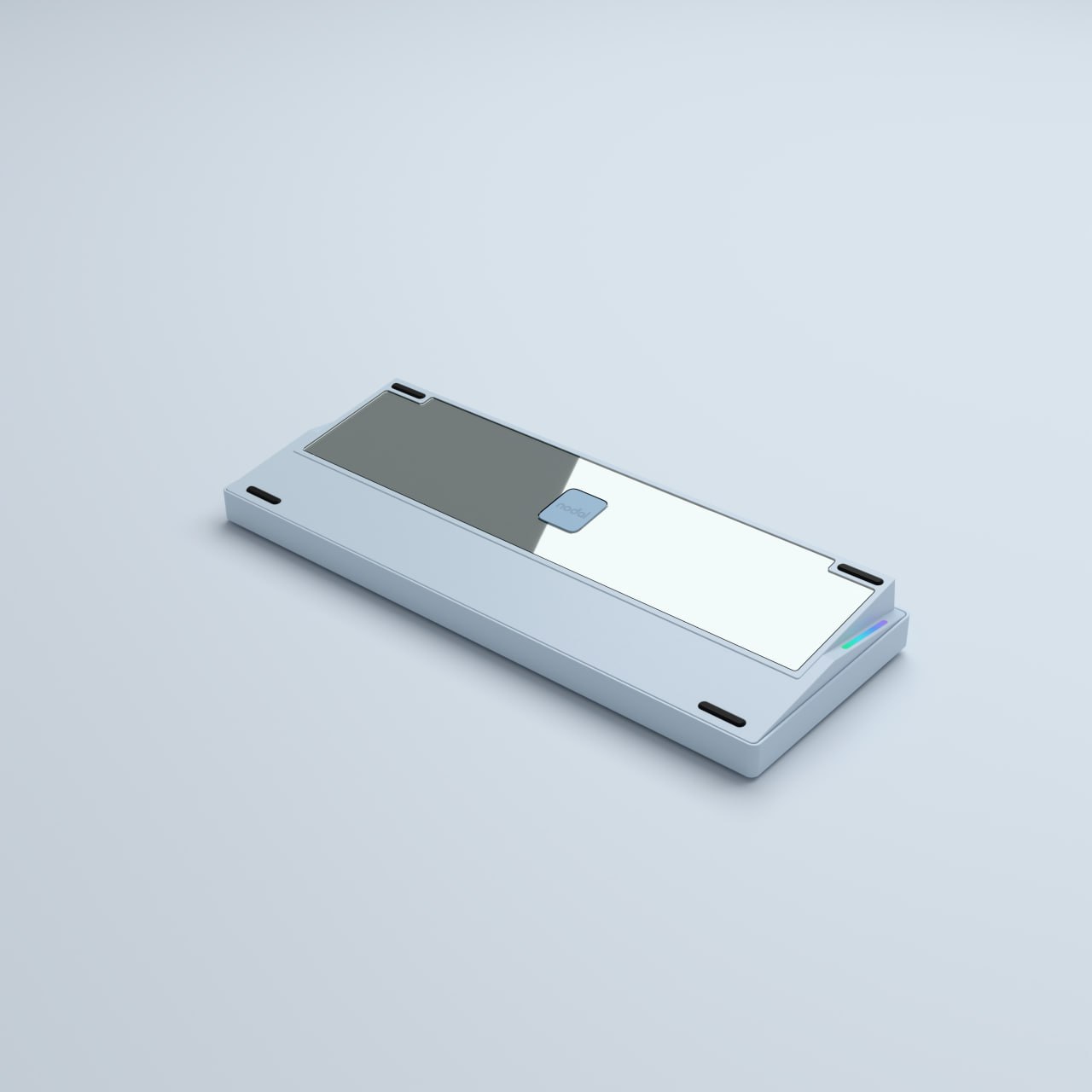
Nodal Studio 87% TKL

THE87

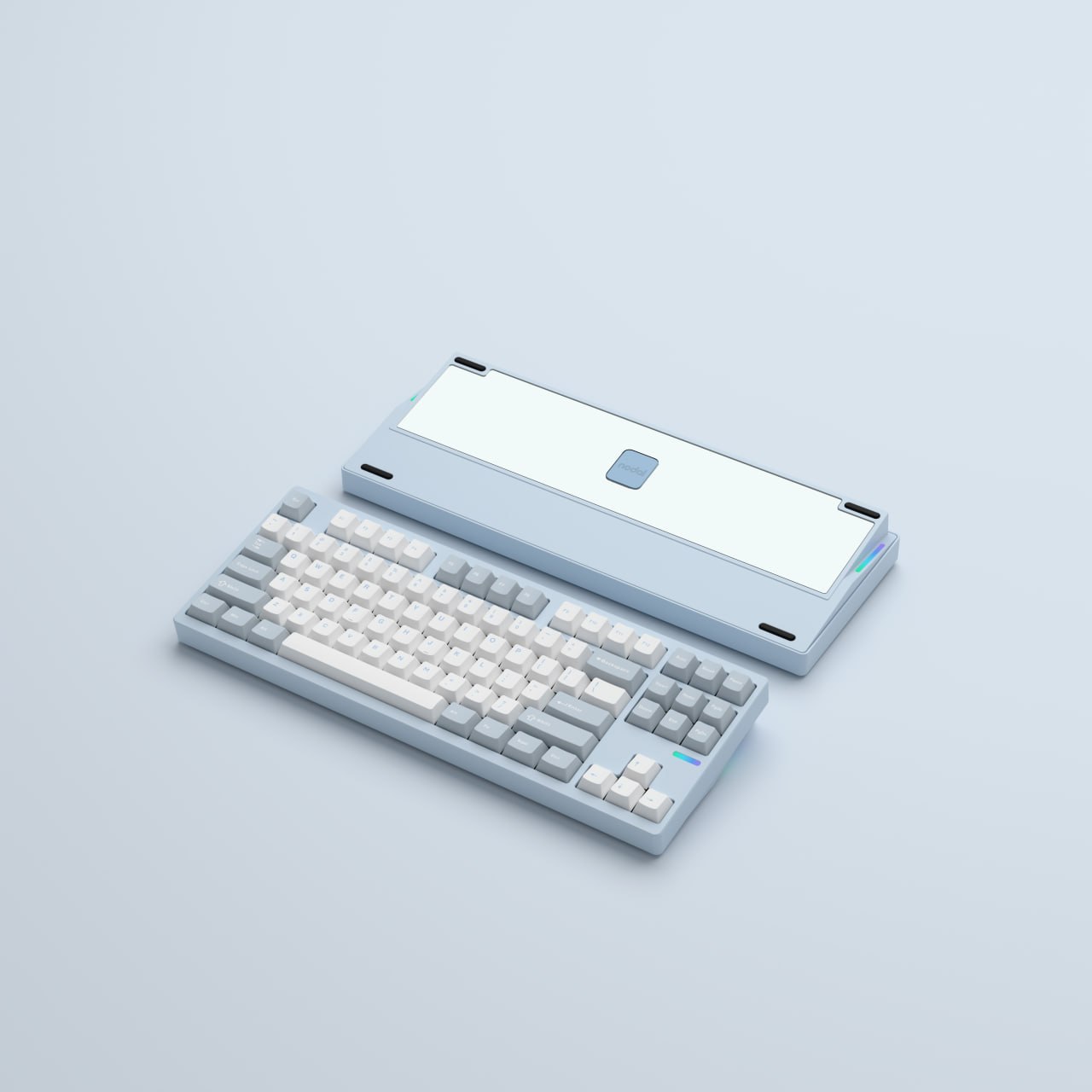
THE87 Sky Blue keyboard layout and tempered glass mirror bottom

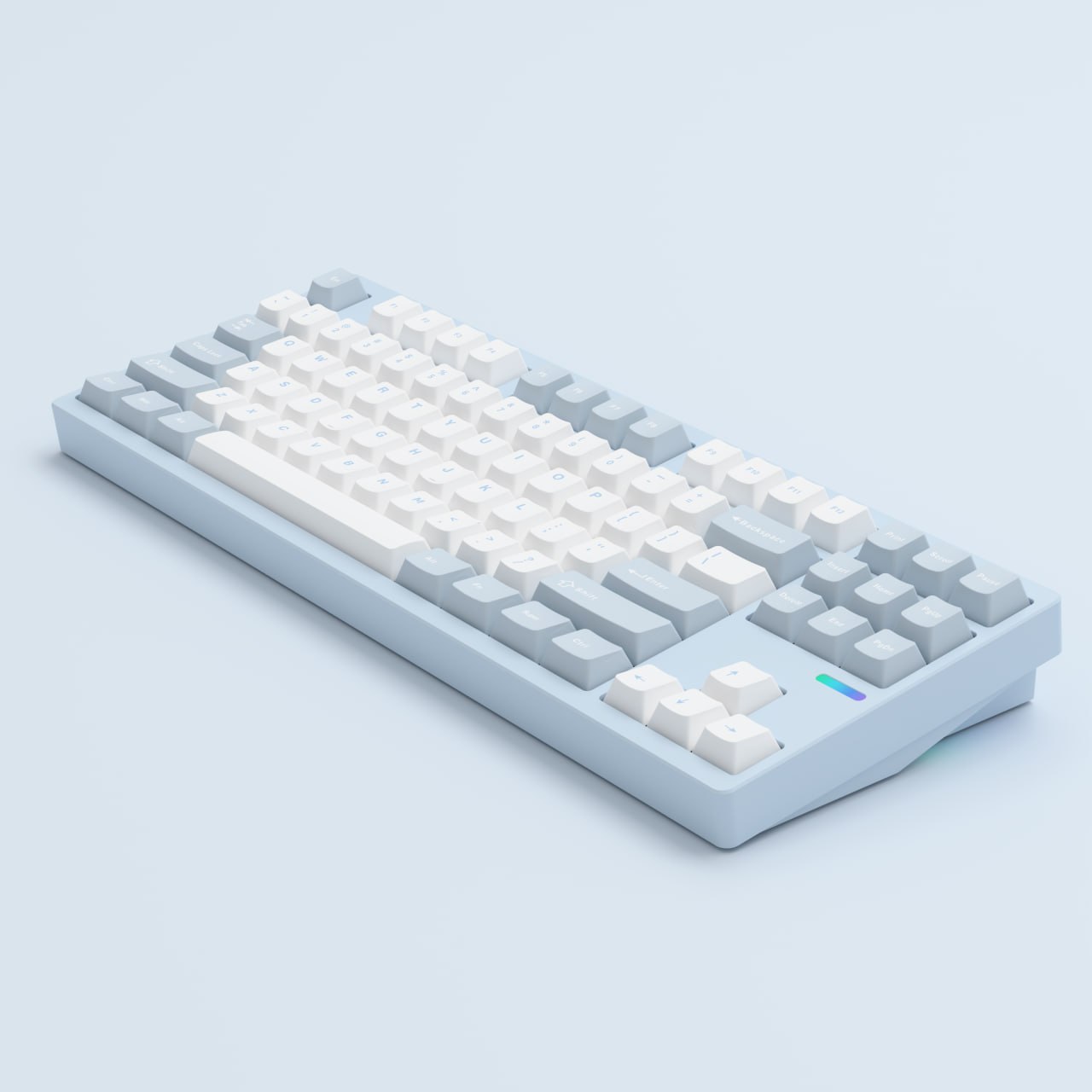
THE87 is an 87-key full-aluminum mechanical keyboard with a tempered glass mirror bottom, gasket mount and tri-mode connectivity. Available in Milky White, Sky Blue and Orange.

  • Full-aluminum CNC case and ball catches
  • KTT Coconut Latte
  • VIA keymap support with THE87-specific JSON
Buy on Official Store

Key Features

THE87

An 87-key tenkeyless layout with a full-aluminum CNC case and tempered glass mirror bottom. Available in Milky White, Sky Blue and Orange.

THE87 is an 87-key tenkeyless (TKL) full-aluminum mechanical keyboard. A physical mode switch on the rear edge selects USB-C wired, Bluetooth or 2.4GHz. It has a gasket mount and an 8,000mAh battery, supports 3-pin/5-pin hot-swap and VIA keymaps, and is available in Milky White, Sky Blue and Orange.

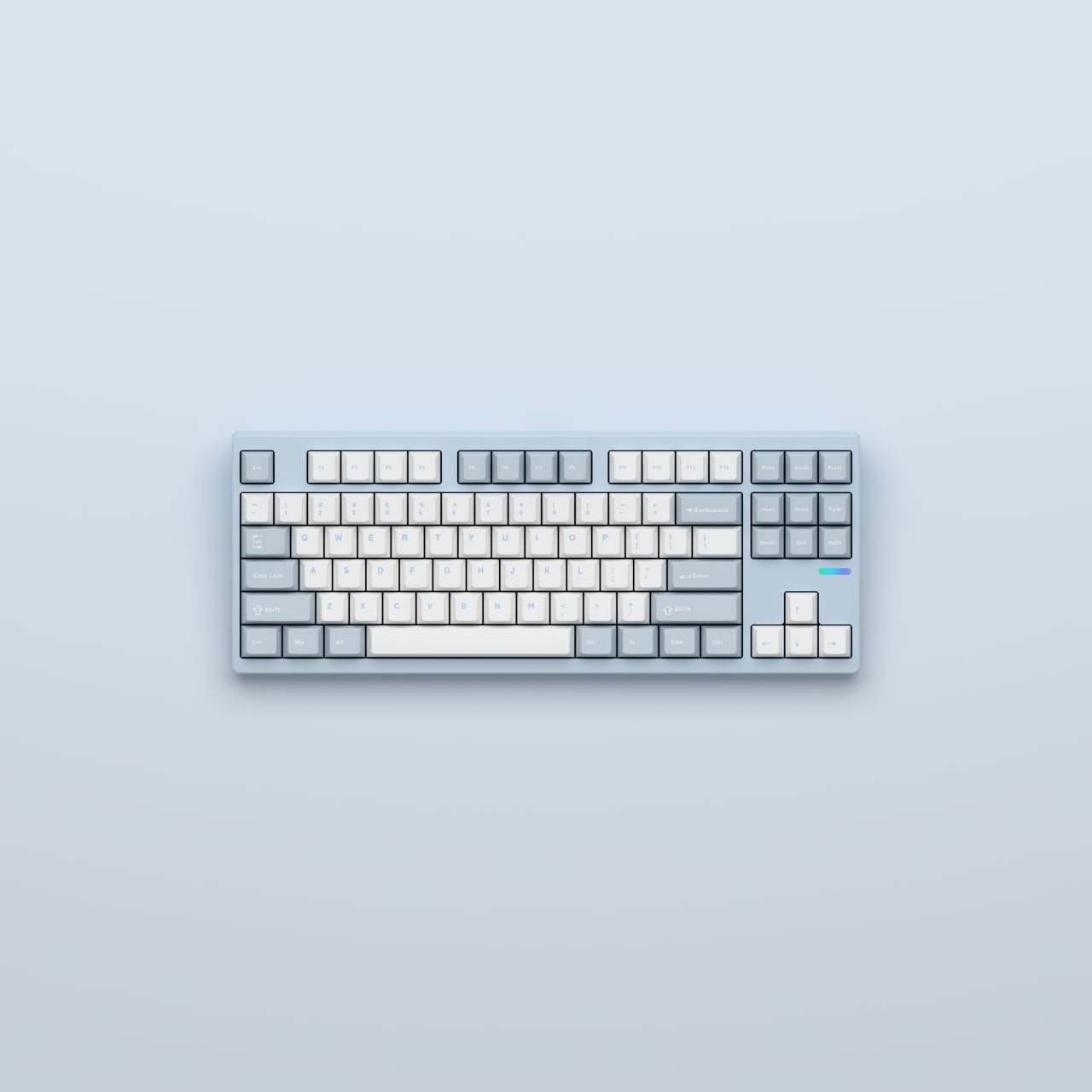
THE87 Sky Blue 87-key tenkeyless layout viewed from above

87 keys, the layout you already know

Tenkeyless is a full-size layout with only the number pad removed. The function row, arrow keys, and editing cluster stay in their standard positions, so nothing has to be relearned coming from an office keyboard, and there is more room for the mouse. It is a standard ANSI layout, compatible with most TKL and full-size keycap sets on the market.
Full-aluminum CNC case and ball catches

The top and bottom are CNC-machined aluminum, with a tempered glass mirror panel on the bottom. The assembly uses a ball-catch top and magnetic internal connector. Available in Milky White, Sky Blue and Orange.

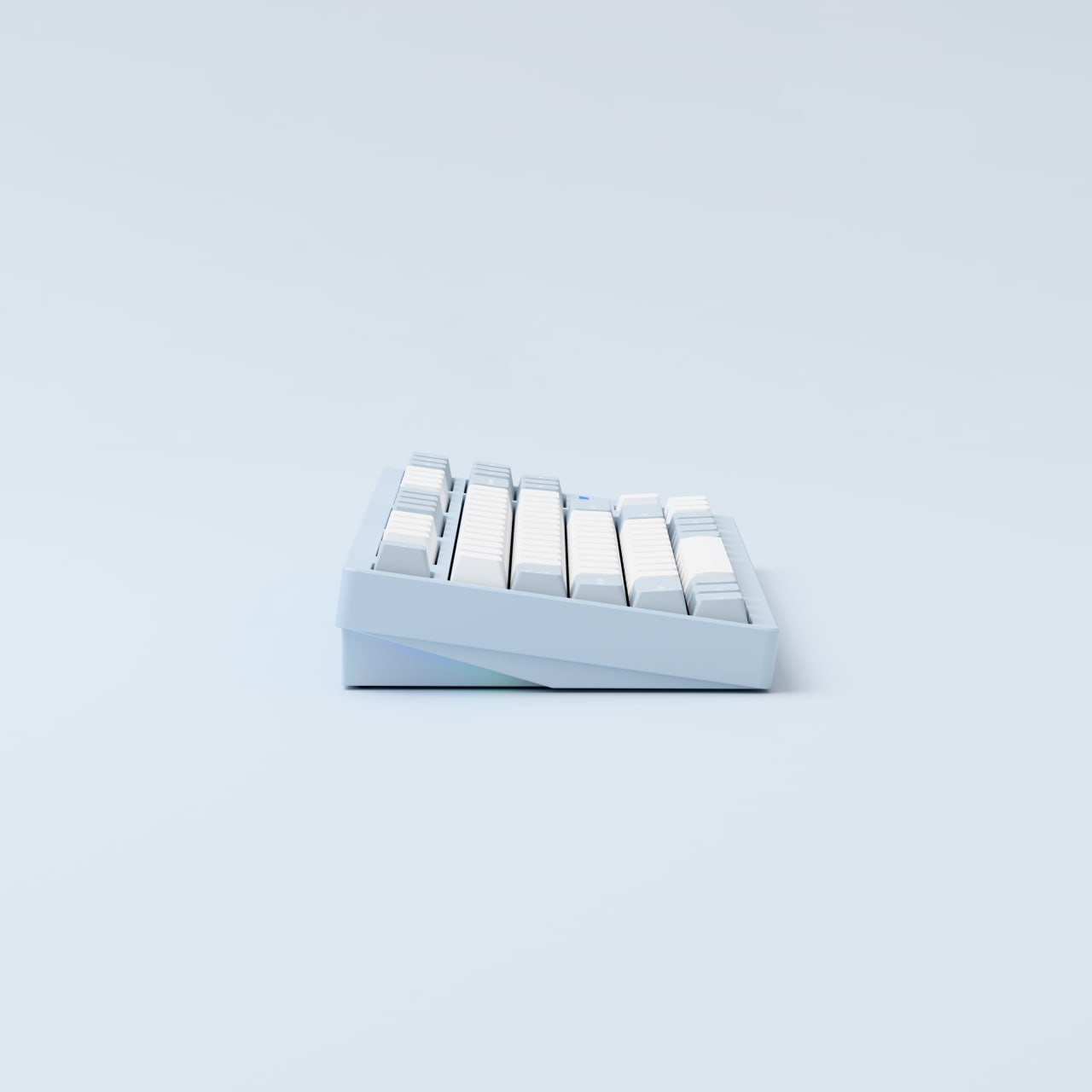
THE87 Sky Blue side profile showing sloped case and keycap heights

Gasket mount and hot-swap

THE87 uses a dual-gasket structure, an FR4 flex-cut plate, a flex-cut PCB and six-layer sound dampening. Hot-swap sockets accept conventional 3-pin and 5-pin mechanical switches without soldering. It uses KTT Coconut Latte switches and double-shot keycaps with English legends.

Tri-mode connectivity, 8,000mAh

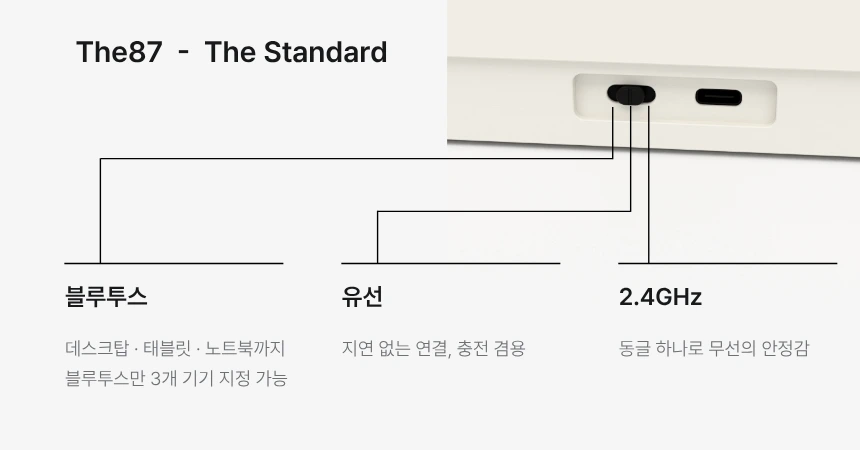
The rear physical switch selects USB-C wired, Bluetooth or 2.4GHz. Documented polling rates are 1,000Hz for wired and 2.4GHz, and 125Hz for Bluetooth. It supports three Bluetooth devices and one 2.4GHz receiver. Holding Fn+D for 3 seconds changes the low-latency setting, not the connection mode. The total battery capacity is 8,000mAh, with receiver storage built into the case.

VIA keymaps, layers and macros

VIA supports keymaps, layers and macros. Connect by USB and download and load the THE87-specific JSON file. Hold Fn+M for 3 seconds to switch Windows/macOS modes.

THE87 VIA JSON and setup guide

Lighting

Per-key RGB backlighting with 25 effects. Ambient light strips run along the lower sides of the case, and a status indicator sits on the front. Brightness has six levels and speed has five. Caps Lock and battery indicators still work with the backlight fully off.

THE87
Specifications

In the Box

  • Keyboard
  • 1.6m USB-C cable (magnetic ring)
  • 2.4GHz receiver
  • Keycap and switch puller
  • Dust cover
  • Carrying pouch
  • User manual
THE87 Specifications
ModelTHE87 (model code ND0038KW)
Layout87-key tenkeyless (TKL), ANSI
CaseFull-aluminum CNC (top and bottom)
FinishElectrophoretic coating + powder coating
ColorsMilky White, Sky Blue, Orange
BottomTempered glass mirror bottom with LED lighting
Receiver storageBuilt-in dongle compartment
MountGasket mount, ball-catch case assembly
PCBFR4 double-sided, hot-swap sockets
SwitchesKTT Coconut Latte
KeycapsDouble-shot, English legends (Coconut Latte configuration)
ConnectivityUSB-C wired / 2.4GHz receiver / Bluetooth (3-device multipairing)
Polling rateWired and 2.4GHz 1,000Hz, Bluetooth 125Hz
Battery8,000mAh lithium
LightingPer-key RGB (25 effects), side ambient light, front indicator
SoftwareVIA (QMK-based), Windows / macOS modes
Dimensions356.8 × 136.8mm
HeightFront 19.9mm / rear 39.2mm (excluding feet)
Typing angleApprox. 8°
WeightPending confirmation
CompatibilityWindows 7/10/11, macOS
Warranty1-year warranty, serviced directly by Nodal Studio
ReleaseSeptember 2026
Connection mode switchThe physical connection mode switch on THE87 is on the rear edge, next to the USB-C port. It selects Bluetooth, USB-C wired or 2.4GHz. The leader lines in the detail image identify the Bluetooth, wired and 2.4GHz positions in that order. For wired use, connect the USB-C cable to your computer.
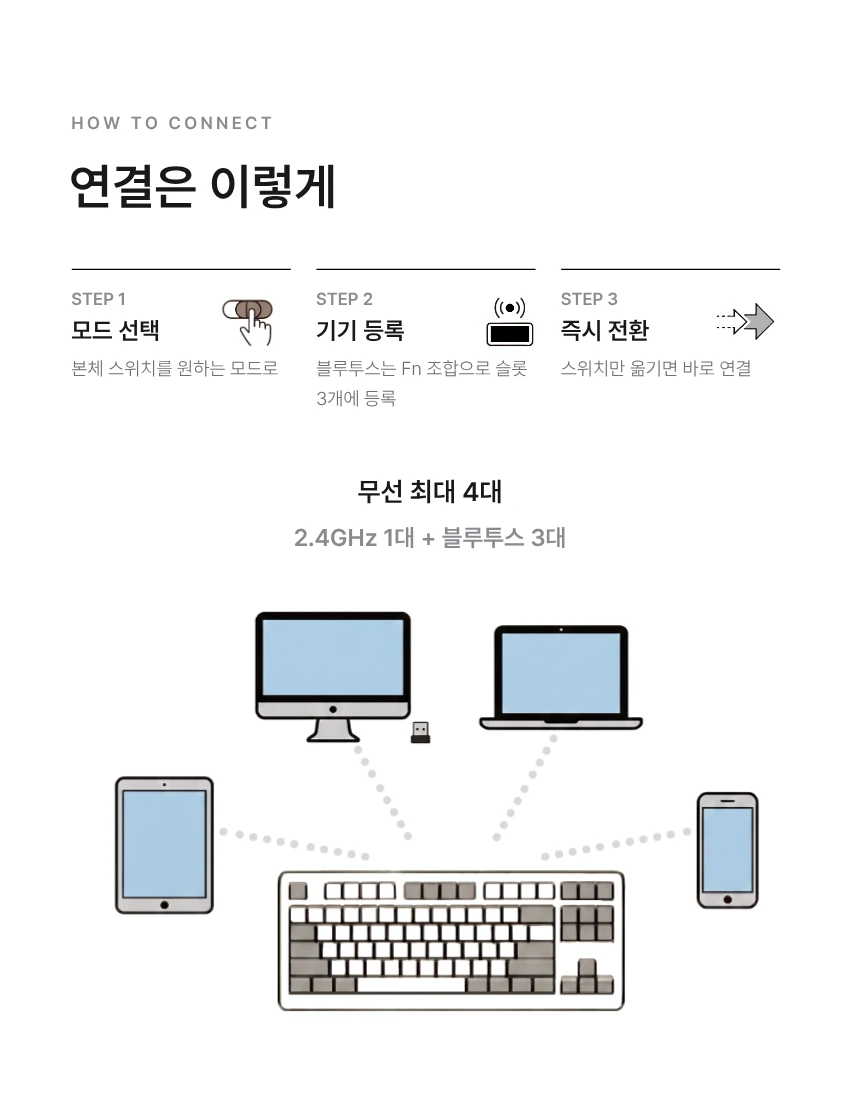
Bluetooth device selectionWith the switch in BT mode, briefly press Fn+Q, Fn+W or Fn+E to select Bluetooth device 1, 2 or 3. Hold the combination for 3 seconds to pair that channel; the indicator flashes blue rapidly. These shortcuts do not replace the rear connection switch.
OS switchingHold Fn+M for 3 seconds to switch between Windows mode (blue flash) and macOS mode (white flash). This changes OS key behavior, not the connection mode or Bluetooth device.

Connection mode switch and Fn controls

Select USB-C wired, Bluetooth or 2.4GHz on THE87 with the physical mode switch on the rear edge. Bluetooth device selection, low-latency settings and Windows/macOS switching are separate Fn controls.

1. Rear physical switch — connection mode

The physical connection mode switch on THE87 is on the rear edge, next to the USB-C port. It selects Bluetooth, USB-C wired or 2.4GHz. The leader lines in the detail image identify the Bluetooth, wired and 2.4GHz positions in that order. For wired use, connect the USB-C cable to your computer.

2. Fn+Q / W / E — Bluetooth device selection

With the switch in BT mode, briefly press Fn+Q, Fn+W or Fn+E to select Bluetooth device 1, 2 or 3. Hold the combination for 3 seconds to pair that channel; the indicator flashes blue rapidly. These shortcuts do not replace the rear connection switch.

3. Fn+R — 2.4GHz pairing

With the switch in 2.4G mode, hold Fn+R for 3 seconds to start 2.4GHz pairing; the indicator flashes green rapidly. Connect the 2.4GHz receiver to your computer for use.

4. Fn+D — low-latency setting

Hold Fn+D for 3 seconds to toggle low-latency mode (red flash) and normal mode (white flash). This does not select wired, Bluetooth or 2.4GHz connectivity.

5. Fn+M — Windows / macOS switching

Hold Fn+M for 3 seconds to switch between Windows mode (blue flash) and macOS mode (white flash). This changes OS key behavior, not the connection mode or Bluetooth device.

THE87 rear physical connection mode switch next to the USB-C port, with Bluetooth, wired and 2.4GHz position guides
Rear connection detail image. The slider next to USB-C selects the connection mode. The Korean editorial labels read Bluetooth, wired and 2.4GHz; they are not transcriptions of markings on the case.
THE87 connection guide: select the physical mode switch, register Bluetooth devices, one 2.4GHz and three Bluetooth devices
Connection illustration from the official product detail page. Up to four wireless devices means one 2.4GHz and three Bluetooth devices. In BT mode, Fn+Q/W/E selects the Bluetooth channel.
View original product detail image

Charging and battery indicators

Two 4,000mAh batteries provide 8,000mAh total capacity. Charge with the included cable connected to a computer USB port. Do not connect directly to a phone or wall charger; fast charging is not supported. The left Ctrl lights red while charging and green when full. Fn+Left Ctrl toggles this indicator. Fn+Space shows the battery level on the number row.

THE87 Frequently Asked Questions

Where is the connection mode switch on THE87?

The physical connection mode switch on THE87 is on the rear edge, next to the USB-C port. It selects Bluetooth, USB-C wired or 2.4GHz. The leader lines in the detail image identify the Bluetooth, wired and 2.4GHz positions in that order. For wired use, connect the USB-C cable to your computer.

How do Fn+Q/W/E, Fn+D and Fn+M differ from the mode switch?

With the switch in BT mode, briefly press Fn+Q, Fn+W or Fn+E to select Bluetooth device 1, 2 or 3. Hold the combination for 3 seconds to pair that channel; the indicator flashes blue rapidly. These shortcuts do not replace the rear connection switch. Hold Fn+D for 3 seconds to toggle low-latency mode (red flash) and normal mode (white flash). This does not select wired, Bluetooth or 2.4GHz connectivity. Hold Fn+M for 3 seconds to switch between Windows mode (blue flash) and macOS mode (white flash). This changes OS key behavior, not the connection mode or Bluetooth device.

Where can I buy THE87?

It is on sale at Nodal Studio's official Naver Smart Store, in three colors: Milky White, Sky Blue, and Orange.

Can I change the switches?

Yes. The hot-swap sockets let you pull and replace switches without soldering. 3-pin and 5-pin MX-compatible switches work.

Does it work with Mac?

Hold Fn+M for 3 seconds to switch between Windows mode (blue flash) and macOS mode (white flash). This changes OS key behavior, not the connection mode or Bluetooth device. With the switch in BT mode, briefly press Fn+Q, Fn+W or Fn+E to select Bluetooth device 1, 2 or 3. Hold the combination for 3 seconds to pair that channel; the indicator flashes blue rapidly. These shortcuts do not replace the rear connection switch.

How do I remap keys?

VIA supports keymaps, layers and macros. Connect by USB and download and load the THE87-specific JSON file. Hold Fn+M for 3 seconds to switch Windows/macOS modes.

What is the battery capacity?

8,000mAh. Runtime varies widely with backlight brightness and connection mode. Fn+Space shows the remaining charge on the number-row backlight.

Can I use other keycap sets?

It is a standard ANSI tenkeyless layout: 6.25u spacebar, 2.75u right Shift, 1.25u bottom-row modifiers. Most TKL and full-size keycap sets fit.

How does warranty service work?

Nodal Studio provides a one-year warranty directly. Contact customer support by email or through the store where you purchased.

THE87 Downloads

THE87

THE87 Manual

File type:
Manual · PDF
File size:
1.7 MB
Source:
Nodal Studio product archive

File language: Korean

Download
THE87

THE87 VIA JSON

File type:
JSON · JSON
File size:
4.9 KB
Source:
Nodal Studio product archive
Download
THE87

THE87 Firmware Updater EXE v1.1.6

File type:
Firmware · EXE
File size:
16.6 MB
Version:
1.1.6
Operating system:
Windows x64
Source:
Nodal Studio THE87 release

Windows x64 updater (u2.3.1) with the selected firmware included. Bootloader driver installation may require administrator approval. For THE87 only. Set the switch to the center wired position and connect via USB. Do not disconnect during the update.

Check the supported model, revision, and instructions before updating. Do not proceed unless compatibility is confirmed.

Download
THE87

THE87 Firmware HEX v1.1.6 (for QMK Toolbox)

File type:
Firmware · HEX
File size:
211.2 KB
Version:
1.1.6
Source:
Nodal Studio THE87 release

For THE87 only. Set the switch to the center wired position and connect via USB. Do not disconnect during the update.

Check the supported model, revision, and instructions before updating. Do not proceed unless compatibility is confirmed.

Download
Download Center